Litigator: Federal and State Court Rules For Your iPad or iPhone

Litigator looks like an excellent resource for Trial Lawyers, regardless of how tech-savvy they are (or aren't) - as long as you have an iPad or iPhone. I can easily see how convenient it could be during lunch to pull out the iPad, quickly checking a Rule, instead of realizing the books were left on the table, locked up in the courtroom. An iPhone version of Litigator is also available, which I did not review. Although the app is similar in form and function, the display is no match for the iPad. It should also be noted that I was contacted by Linsay Associates, the publisher of this app, once my review was published on Law Technology News. I was asked for some clarification with respect to improvements I mentioned that I would like to see. I see this as a good sign.  
Reprinted with permission from the February 16, 2011 issue of Law Technology News. ©2011 ALM Media Properties, LLC.

Litigator, an app from Linsay Associates, was recently released to provide quick and easy access to statutes, rules, and court information on an iPad.

When you first open the app, a lower navigation bar features tabs for Federal Rules, Local Rules,and Courts. The Federal Rules tab contains links to Appellate, Civil and Criminal Procedure, Evidence, Supreme Court, and the U.S. Code Title 18 and 28. 
 Clicking the Local Rules tab for the first time opens a window with no rules, only options to purchase state and local rules at $4.99 per court. There is also a link to request new rules you would like added to the app via iTunes, which opens an e-mail message to Linsay Associates. The developers will add the rules (at $4.99 per set) to the app, then notify you via e-mail once they become available in the iTunes store. If someone has already requested a set, that set will appear in the list of currently available rules available for purchase.

The Courts tab offers a list of U.S.District courts by state. Tapping one of the courts takes you to a screen that includes the address, telephone, and website -- and the iPhone version of this app includes a link to a direct phone number to the court. Frankly, I'm thankful that the iPad version does not have this capability yet, as I have been having nightmares lately, stemming from a disturbing image found on the 3 Geeks and a Law Blog.

Tapping the court address opens a window to a Google Map of the court and surrounding area.

Tapping the link to the court's website directs you to the homepage of the court. I would really like to see state courts included in this directory -- especially considering that there are so many more state than federal courts to keep track of. Having ready access to maps and court contact information can be a real time-saver -- especially for legal professionals who travel to multiple jurisdictions.

GETTING INTO THE RULES

For purposes of this review, I selected Rules 401 through 404 from the Federal Rules of Evidence. Once you're back to the default Federal Rules Screen, you can then tap the Evidence link, which takes you to a listing of Articles. I chose Article IV, Relevancy And Its Limits, which lead me to a list of Rules: 401-415. Rules 401-403 are relatively brief, and do not reference other rules in the bodies of their text. Once you get to Rule 404, "Character Evidence Not Admissible To Prove Conduct; Exceptions; Other Crimes," additional rules are mentioned and hyperlinked in the body of text -- a very convenient feature. If you wish to review a referenced rule via the hyperlink, tapping on it takes you directly to that rule. Then, a "back" arrow becomes available to return directly to the previously viewed page, in addition to the navigation options to go to the next page and previous page.

New York Local Rules with hyperlinks.
There is a search function to find specific text, along with a bookmark feature, which allows you to add rules to a list for quick reference. But the search function does not work when you are displaying the text of rules. That's a disability. You need to back out to the main screen, select the specific rules you want to search (i.e., Appellate, Civil, Criminal, etc.), and then type in your search term.

There is a separate index for each set of rules, so searching is limited to the selected set. After you enter your search terms and select search, the next screen shows a list of articles containing your terms aka "hits." To view the hits within an article, you select the article and click a red arrow to go to the next or previous hit in that article -- but clicking through hit-highlights in one article will not send you to the next or previous article in your search results. You have to manually select another article if you wish to view the hits there.
For example, I selected the Federal Rules of Civil Procedure and searched for the term "expert." Rule 26 was listed in the result set. Tapping on Rule 26 then opened the rule with hit-highlights -- my search term (expert) was highlighted in bright red. While I could scroll down to the next hit, I clicked a little red arrow that took me directly to the next hit in the rule.

Although hyperlinks work great within the app, they do not work as internet hyperlinks outside of the app. You can quickly e-mail a rule, or copy and paste portions (or multiple rules) into a message to send to yourself, a colleague, or the court. But when you view the rules outside of the iPad app, the hyperlinks visually appear but do not work. They will only work when using the iPad app to view the rules. When you use the rules outside of the app, note that the Federal Rules are available online at the Cornell University Law School website. NOTE: I was contacted by publisher about this feature, and would expect to see it soon in a future update to the app.

Now that a compilation of rules is available on the iPad, I'm wondering when more specialized rules will become available in this app, or another, e.g., the California Civil Jury Instructions? In case you're interested, I'll also include a link to the California Criminal Jury Instructions here.

Despite its few shortcomings, Litigator sure beats carrying an extra stack of books to court, and might even be able to help you find your way there. And, although you could certainly compile a set of web links that would enable you to do much of the same work, you would be dependent on an internet connection -- something that is not always available or reliable in court, or on a plane.

Ted Brooks is a trial presentation consultant, author, and speaker, with offices in Los Angeles & San Francisco. E-mail: ted@litigationtech.com. Blog: Court Technology and Trial Presentation.

::::PRODUCT INFORMATION::::
Litigator, Linsay Associates, $14.99 (includes Federal Rules; $4.99 per set of local court rules)

Ted Brooks, President
Litigation-Tech LLC
"Enhancing the Art of Communication"
213-798-6608 Los Angeles
415-291-9900 San Francisco

Litigation-Tech Announces New Trial Presentation Rate Structure

In order to help you worry less about costs related to trial prep and presentation, or the risks associated with “bargain hunting,” Litigation-Tech LLC is pleased to announce a new competitive rate structure on trial presentation labor and equipment.

We now offer hourly rates as low as $150 for trial prep, and $175 for trial. My rate is a bit higher, should you prefer that I personally handle your case. We do not charge overtime, nor do we charge for our trial computers.
  
Example, 1-week trial
Pre-trial prep (graphics, exhibit database, deposition video designations)
20 hours x $150 = $3000

Trial Presentation (Trial Technician in court daily)
40 hours x $175 = $7000

Why choose Litigation-Tech LLC?
  • Over 10 years actual trial presentation consulting experience in matters of all types
  • Large firm capabilities, small firm flexibility and overhead
  • Qualified and experienced Trial Technicians or Trial Consultant (with in-house law firm trial experience)
  • No inexperienced trainees, working at minimal salary assigned to your trial (while you pay full rates)
  • Litigation-Tech is an established company in business since 2002 - not just a private individual

Additional fees and expenses may apply for services or items not listed. Any estimates provided are intended only to serve as a rough guideline of costs and expenses. Actual invoice amount will vary according to the needs of counsel and trial team. Cases incurring referral fees to our business partners not eligible. Rates subject to change without notice.

Thank you, and please let me know if you’d like our rate sheet, or wish to discuss this further.

Ted Brooks, President
Litigation-Tech LLC
"Enhancing the Art of Communication"
213-798-6608 Los Angeles
415-291-9900 San Francisco

Exhibit A: iPad App for Trial Presentation


The iPad is one hot topic with lawyers, law firms and other legal professionals (see poll results at the end of this article). I had no idea just how hot, until I reviewed TrialPad and Evidence. Even the teaser article, simply stating that I was in the process of reviewing them drew more page views than anything else at the time. And now, Exhibit A joins the trial presentation apps category. The debates have even begun to appear. Read the article by Josh Barrett on Tablet Legal, and don’t miss the comments at the bottom.

I think you will find that I do not attempt to write a sales pitch for anything I review – nor do I take the quick & easy route of simply copying from the marketing text of the publisher’s web page. Rather, I do my best to offer an independent and objective analysis, from the average user’s perspective. Not only does this approach make for a better and more accurate review, it also helps the developers identify issues and correct them. I have received comments from several developers, thanking me for my candid reviews, and letting me know that my suggestions were being (or already had been) incorporated into upcoming versions. With the Court’s permission, I will now present Exhibit A.

Reprinted with permission from the February 10, 2011 issue of Law Technology News. ©2011 ALM Media Properties, LLC.

Exhibit A joins two other iPad apps for trial presentation, TrialPad and Evidence. While none of these apps are likely to replace trial presentation consultants or even software suites such as TrialDirector (click here for a complete review of TrialDirector 6), they could be used effectively in the right scenario, such as a settlement conference, mediation, or even a small trial. Anything more should include a thorough review of your malpractice insurance policy. Before you proceed to use the software, get to know its capabilities and limitations from this review and any further information posted on the Court Technology and Trial Presentation blog. NOTE: As with my other reviews and articles which are first published elsewhere, such as on Law.com, this blog version includes last-minute updates, additional information and screen-shots.

When you first open Exhibit A, the Imports folder is displayed, which looks like an open briefcase. There are a number of methods to import exhibits, e.g., via iTunes and e-mail attachments. Support for DropBox will be available in a future release. You can also send exhibits to Exhibit A using folder shares over a Wi-Fi network and FTP. The thing I liked about the import feature is that the (selected) Help screen detects and displays the IP address of your iPad, so you can direct your computer's web browser or FTP client accordingly. This feature makes it easy to transfer files from a desktop computer to your iPad, and also allows you to create new folders in Exhibit A using your FTP client. I had some trouble getting the Wi-Fi transfer to work with my system, but the FTP feature worked fine. 
 
Imported exhibits in Exhibit A ready for annotation and presentation.
Once you've loaded some exhibits, tapping the "Imports" briefcase will display them by the dozen -- in increments of 12 icons, sorted in alphanumeric order by file name. Scrolling gets you to the next dozen exhibits. While this may be fine for 12 or less exhibits, having more would be difficult to keep them all in view -- and within easy reach. You can sort the exhibits by alphanumeric or (you may filter them by) alphabetic file name, or by file type. Tapping an exhibit displays it in the annotation screen. Tap-holding an exhibit brings up additional options, including move (to a folder within the Imports briefcase), rename, or delete.

From the annotation screen, tapping the Files button at the bottom of the screen takes you back to the Imports folder, or additional briefcase folders that you created (which will also show up via FTP or iTunes), and leaves you in a file list view. From there, you can open any of your briefcases (aka folders) and then view the files in an alphanumeric order by their name. Unfortunately, there are no additional methods of sorting in the file list view. I found that a tap-and-drag-right action gives you the option to delete the file. You can also create new folders when viewing a list of exhibits, which will also display in the file list view.

I really liked the FTP feature. It allowed me to quickly add and populate folders in Exhibit A from my laptop, without having to tap my way through an app or use iTunes. The FTP access is available even when the iPad is asleep! Overall, I like the file system and accessibility. As with other apps, familiarizing yourself with all of the key features is critical.

GET TO KNOW THE APP
The larger the file size, the slower it is to load and display in Exhibit A. Color PDF files approximately 3 MB in size crashed the app; PDFs less than 3 MB did not. Although large color PDF exhibits initially loaded and displayed fine, when I tried to go back to the main screen, the app crashed. While you may not consider a 3 MB color PDF a typical exhibit, I used one in a recent case and tested the Evidence and TrialPad apps with that same file. If you use anything other than a simple text-based PDF in any of the trial presentation apps, I would encourage you to test each file to make sure it's not going to cause a problem when you least expect it.

Exhibit A works in landscape mode only -- the app does not rotate to portrait mode on the iPad. Exhibit pages are viewed in their entirety, but there is no page counter; so you don't know where you are in a multi-page exhibit unless the pages are numbered and in view.

When selecting digital file types for exhibits, stick to PDF text files and common internet graphic files like JPEG, GIF (and PNG). Like the Evidence app, multi-page TIFF images in Exhibit A display only the first page. And although PowerPoint is supported, I could not get it to display. Note that the TrialPad app does not support either of these file types.

Exhibit A supports iPad-compatible video, which includes MPEG-4 and .mov files. Online Converters are available from various sources if you wish to convert from other file types.

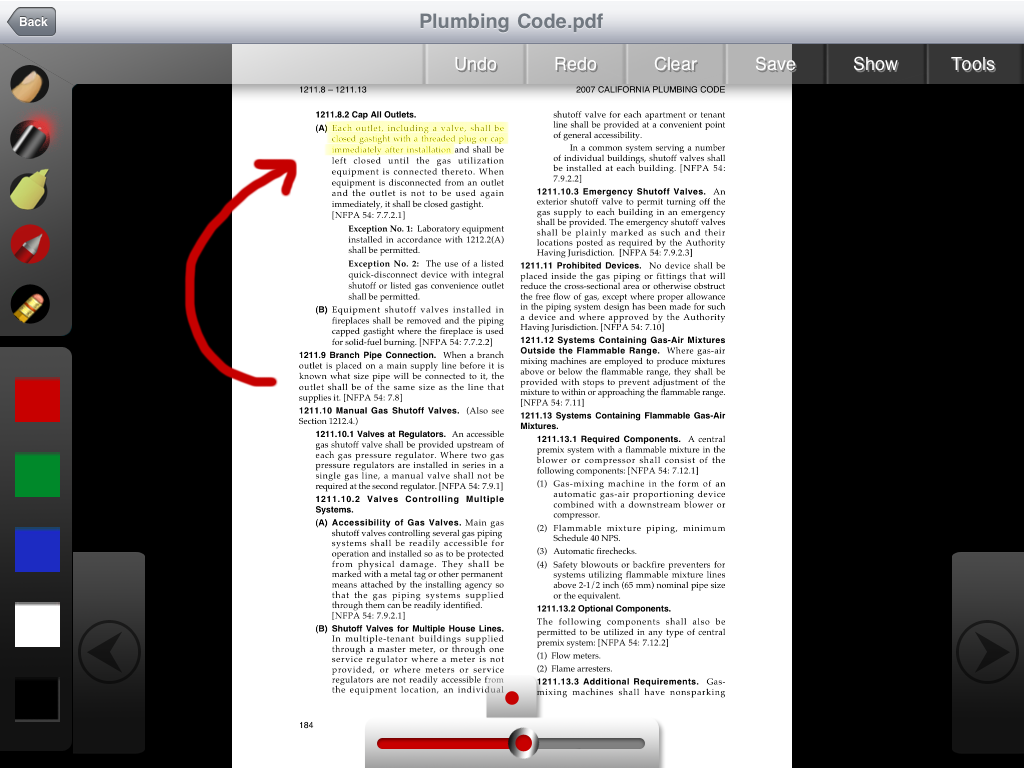
The tools available in the annotation screen include several options available from a palette: zoom, highlight, pen, eraser, and even a glowing red, laser-pointer that is only displayed when your finger is on an exhibit (as shown as the "nose" in the smiley-face graphic near the end of this article). The highlighter tool works differently than the highlighter in the Evidence and TrialPad apps. It is a free-draw tool, like the pen tool and eraser.

The yellow color of the highlighter is similar to that of what you might find in PowerPoint -- a dull, semitransparent yellow color.

All of the annotation tools allow you to change the size of the line, and you can also choose colors from the pen palette, including red, green, blue, black, and white, which could also be used as a redaction tool.

Exhibit A annotations view of an exhibit with its palette of tools and colors on the left-hand side of the screen and action buttons along the top.
Each drawing action overlays a previous annotation. There are options to undo, redo, clear (all), and save annotations. Tapping the Clear button removes all annotations, but then changes to a Redraw button, so you can instantly go back to the annotated version. Once you are ready to display an exhibit to the big screen or external monitor, you select the Show option to go to presentation mode. To display to an external monitor, you need to connect the iPad's VGA adapter to your projector input cable. The video display resolution should be the standard 1024 x 768 pixels.

While in presentation mode, the tool palette is not shown on the external display -- there is an option to hide the palette when presenting. Highlighted information maintains the semitransparent, dull yellow color as seen in the annotation screen in the images above. Compare the TrialPad and Evidence apps, which both displayed a bright, transparent yellow highlight in presentation mode.

Per the iPad, the presentation will go into sleep mode after a period of inactivity (5 minutes by default, but the "Auto-Lock" sleep mode can be set at 2, 5, 10, or 15 minutes, or never). Once the iPad goes to sleep, you will be forced to back out of the current exhibit and into the files view before you can enable the external display again. So don't become too distracted during trial that you miss the "dimmed screen" warning that the iPad is about to take a nap -- or set the iPad to "never" go into sleep mode. To be fair, the sleep problem also occurs in Evidence. TrialPad is the only trial presentation app I've reviewed that, by default, prevents the iPad from going to sleep during the presentation.

The presentation screen mirrors your actions when the "Show" feature is active. If you wish to select another document and highlight it without displaying your activity, leave the current exhibit in "Show" mode and it will remain on the external display while you go back to the thumbnails view on the iPad screen and select another exhibit. Once you "Show" an exhibit, it will remain on the external display until you select the "Hide" option or bring up a new exhibit and select "Show"; the newly selected exhibit will replace the previous one. (The one exception is when you go to the next or previous page of an exhibit that is being displayed on the external monitor or screen. If you go to the next page, the presentation will also advance to the next page. This inconsistency should be corrected, so it always works the same, regardless of how you’re operating it.)

A Whiteboard view, which is available from several of the screen views, offers the same set of tools as the annotation view, but without displaying a document. The Whiteboard can be used instead of butcher paper to develop a list or simple drawing. It's a nice feature. (It should also be noted that as demonstrated in the image below, you may need some practice using your finger to write or draw with your iPad.) 


CONCLUSION
Exhibit A really has some nice features, all available at a special introductory price of $4.99 -- that's lower than either Evidence ($9.99) or TrialPad ($89.99). Used for the right purpose, and in cases with minimal risk, Exhibit A, like Evidence and TrialPad, will present exhibits nicely. But any attempt to use these apps beyond their capability will likely result in some form of disaster. So make sure you know that your presentation works on the app of your choice before you use it in trial -- nobody will be remember how "cool" you and your iPad are if your presentation doesn't work in court.

Ted Brooks is a trial presentation consultant, author, and speaker, with offices in Los Angeles & San Francisco.

:::: PRODUCT INFORMATION ::::
Exhibit A, Lectura, LLC, $4.99 (special introductory price)


Results of a recent LinkedIn Poll
 Ted Brooks, President
Litigation-Tech LLC
"Enhancing the Art of Communication"
213-798-6608 Los Angeles
415-291-9900 San Francisco

 
Free Host | new york lasik surgery | cpa website design